There are twelve of them, built for the way a small production really
runs, and every plan includes all of them. Nothing on this page is a
plan for later. If it’s described here then it’s built, and whatever
isn’t built is listed at the bottom.
True of all of it
One production, and everything that feeds off it
Tag a prop in the pages and it’s in the catalogue, waiting on a budget line, and on the day it shoots. Scenes, characters, page counts and tags come out of the script every time it saves, so you type a thing once and it stays typed.
Everybody in it at the same time
Two of you can write the same scene and watch each other’s carets while you do it, and undo stays per person so yours won’t take back their sentence. Everywhere else in the app, a record somebody is working in is ringed in their colour with their name on it, so you know where the rest of your team is.
Permissions that hide the whole field
Roles are set per production, and contact details and rates are their own permissions that nothing else quietly hands you. A field you can’t see isn’t rendered at all, so nobody can overwrite a number they’ve never read.
It tells you what it doesn’t know
An account with no rates shows you a dash where a total would be, and a budget line the schedule has moved under keeps its old figure until you’ve seen what changes. A call sheet leaves a dashed slot wherever something’s missing, and it names whatever is going to stop a send.
Develop
Working out what the film is, and then writing it.
Script
Write it here, and the rest of the production reads it.
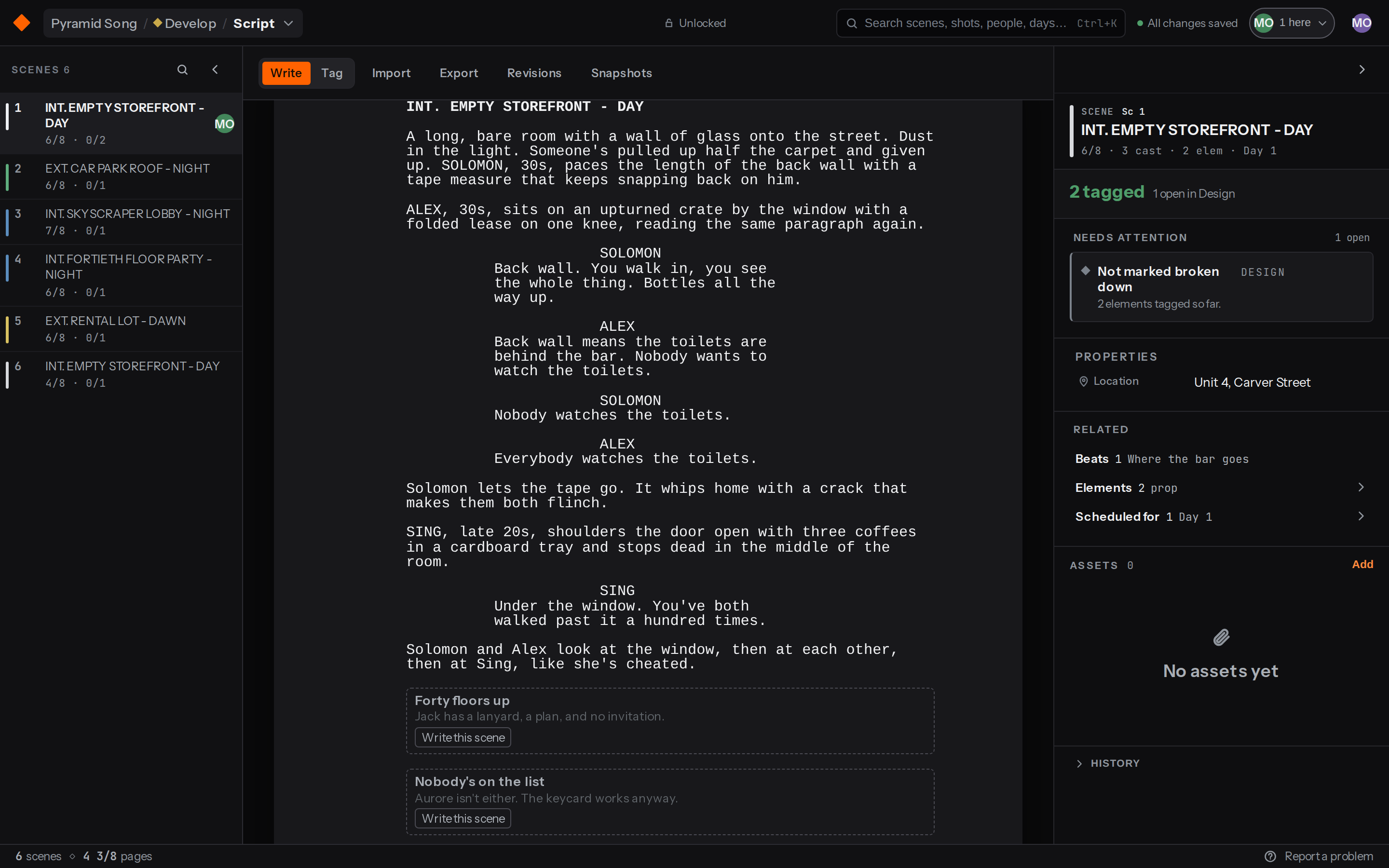
It’s a real screenplay editor, so it formats as you type and keeps your page counts in eighths. It’s also a live document that everyone is inside at once, and every time it saves the rest of the production picks up what changed, which is why nobody here re-types a breakdown out of a PDF.
Return takes you to whatever line type comes next and Tab cycles the one you’re on, so typing INT and a space gets you a scene heading.
Page counts are in eighths, measured at 55 lines to a page with dialogue at its own width. You’ll never see a decimal.
Two of you can write the same scene at once. You see their caret and they see yours, and undo stays per person so yours won’t take back their sentence.
It reads Fountain, Final Draft and plain text, and it exports Fountain along with a script PDF, a breakdown PDF and a shot list PDF. Snapshots keep a named copy you can go back to.
Lock the script and your scene numbers freeze, so a scene added between 10 and 11 becomes 10A and a cut number retires and prints OMITTED. Writing carries on as normal, and what you write queues as a revision for a producer to apply.
Connects to Scenes, characters, page counts and tags. All of it hangs off scene identity, so renaming a slugline won’t orphan the work sitting on it.
Beats
The card wall, from before there’s a script.
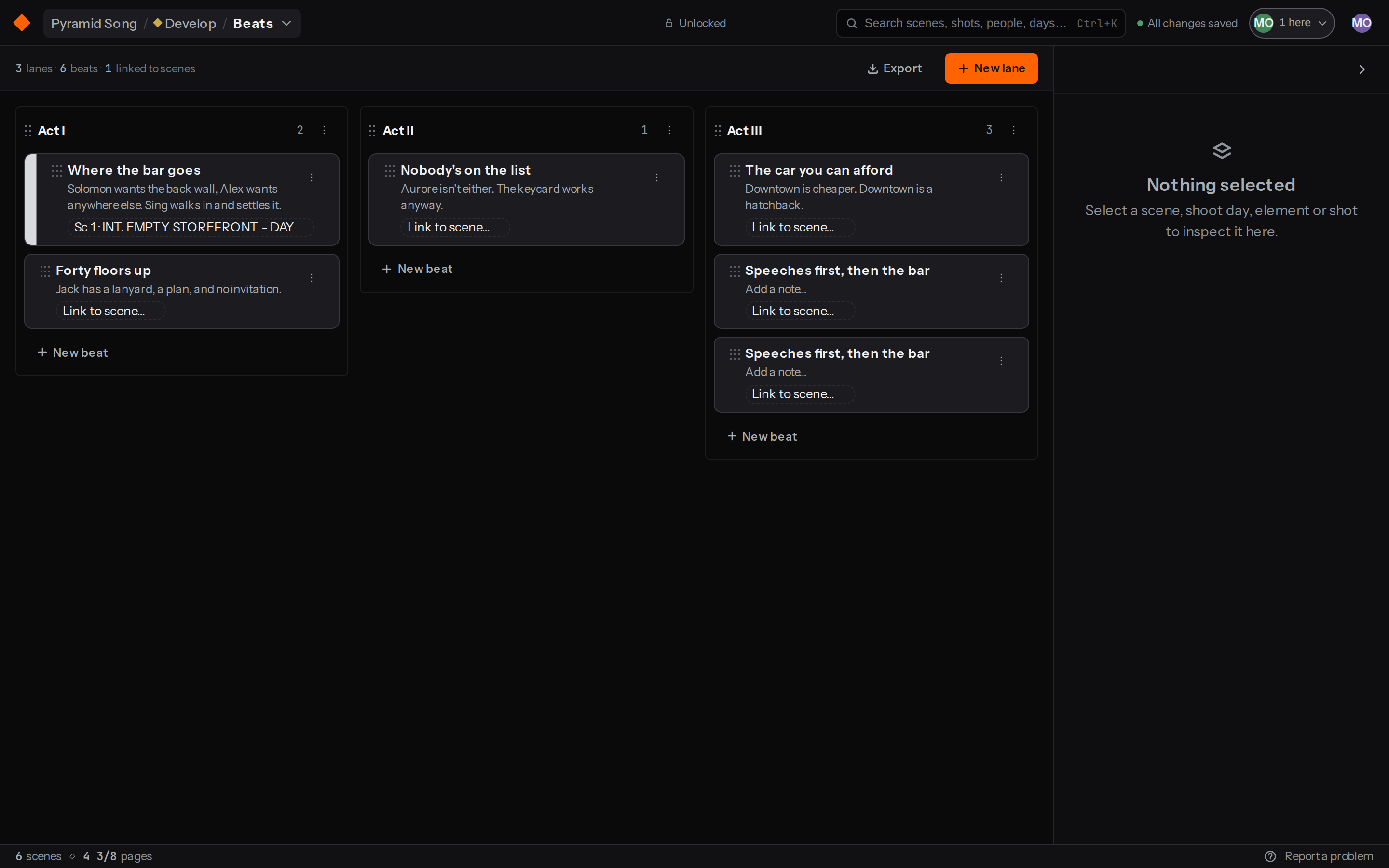
Index cards in lanes, for working out the shape of the thing before you write it. You start with Act I, Act II and Act III, and you can rename those or add lanes of your own.
Each card carries a title and a note, both edited in place, and you drag cards between lanes. Lanes move by their own handle or with the arrow keys.
A beat you haven’t written yet shows up in the script as a ghost, sitting where it belongs, with a button that says Write this scene. Start typing and the two are linked.
Linking happens once. Editing the beat afterwards won’t rewrite the scene, and editing the scene won’t rewrite the beat.
Beats aren’t part of the screenplay, so locking the script doesn’t stop you moving them around.
The whole board exports as a PDF.
Connects to The script, one way. A linked card picks up its scene’s strip colour, and it tells you when that scene gets cut.
Design
Reading the script for everything it’ll take to shoot it.
Breakdown
Break it down in the pages themselves.
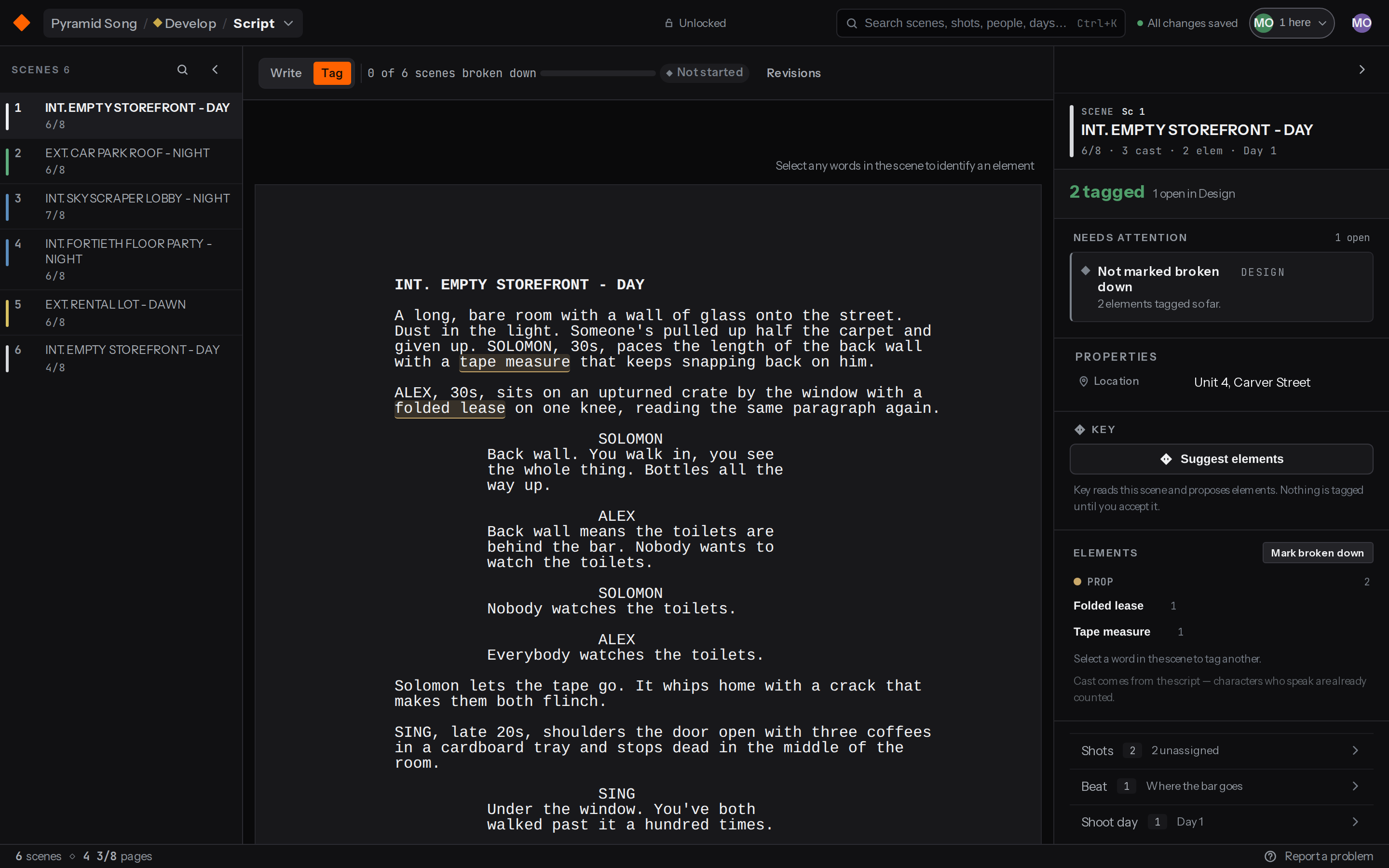
Breaking down a script means naming what every scene needs, and you do that here in the script itself by selecting the words on the page. It’s the same pages, read only, with your scene list on the left and everything you’ve tagged on the right.
Select the words. Either pick an element you already have or make a new one and give it a category in the same move, and the words take on that category’s colour.
The categories are Prop, Wardrobe, Vehicle, SFX, Sound, Extras and Custom. There’s no cast category, because anyone who speaks is read out of the script for you, so you’ll never tag a person.
Tagging a scene and marking it broken down are two different things. You mark it yourself, which is what makes the counter in the toolbar worth reading.
With Key switched on it’ll read a scene and suggest elements, which arrive as a dashed underline in the pages and a card in the panel. Nothing’s tagged until you say so.
The tag lives in the script text, so everybody else in the production has it the moment it lands.
Connects to The catalogue, the budget’s breakdown import, and the needs-breakdown flag on a shoot day.
Elements
One catalogue, so the same duffel bag in five scenes is one element.
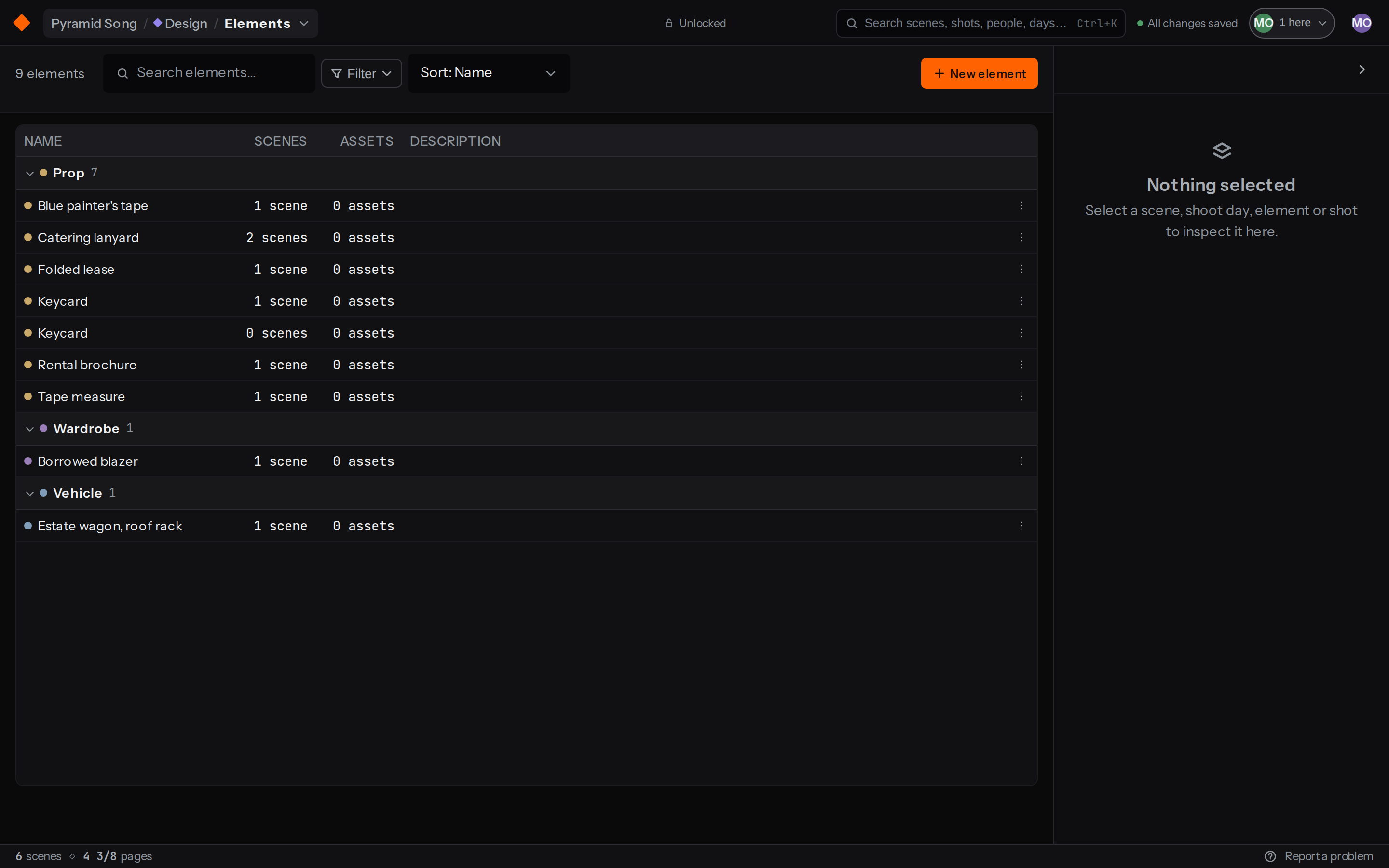
Everything the script needs, in one list grouped by category. Every tag in the pages points at a row here, and that’s what keeps one prop from being counted five times over.
Each row shows the category colour, how many scenes it’s in, how many files are on it, and what it is.
You can search names and descriptions, filter by category or by what has files on it, and sort by name, scene count or when it was added.
Two counts sit next to each other. Every scene it’s ever been in, and the scenes it’s in right now. If those two disagree, something got cut.
Open a row and its name and category are editable, right beside the description. If the same thing went in twice under two names, merge one into the other from the row menu and everything pointing at it moves across, including scenes, assets, budget lines and the tags in the script.
Removing an element is a soft delete, so it leaves the list while existing tags in the script keep rendering, and an admin can bring it back.
Connects to Tags from the script. Assets, budget lines and the shoot day on the other side.
Locations
Real places, with addresses and permits on them.
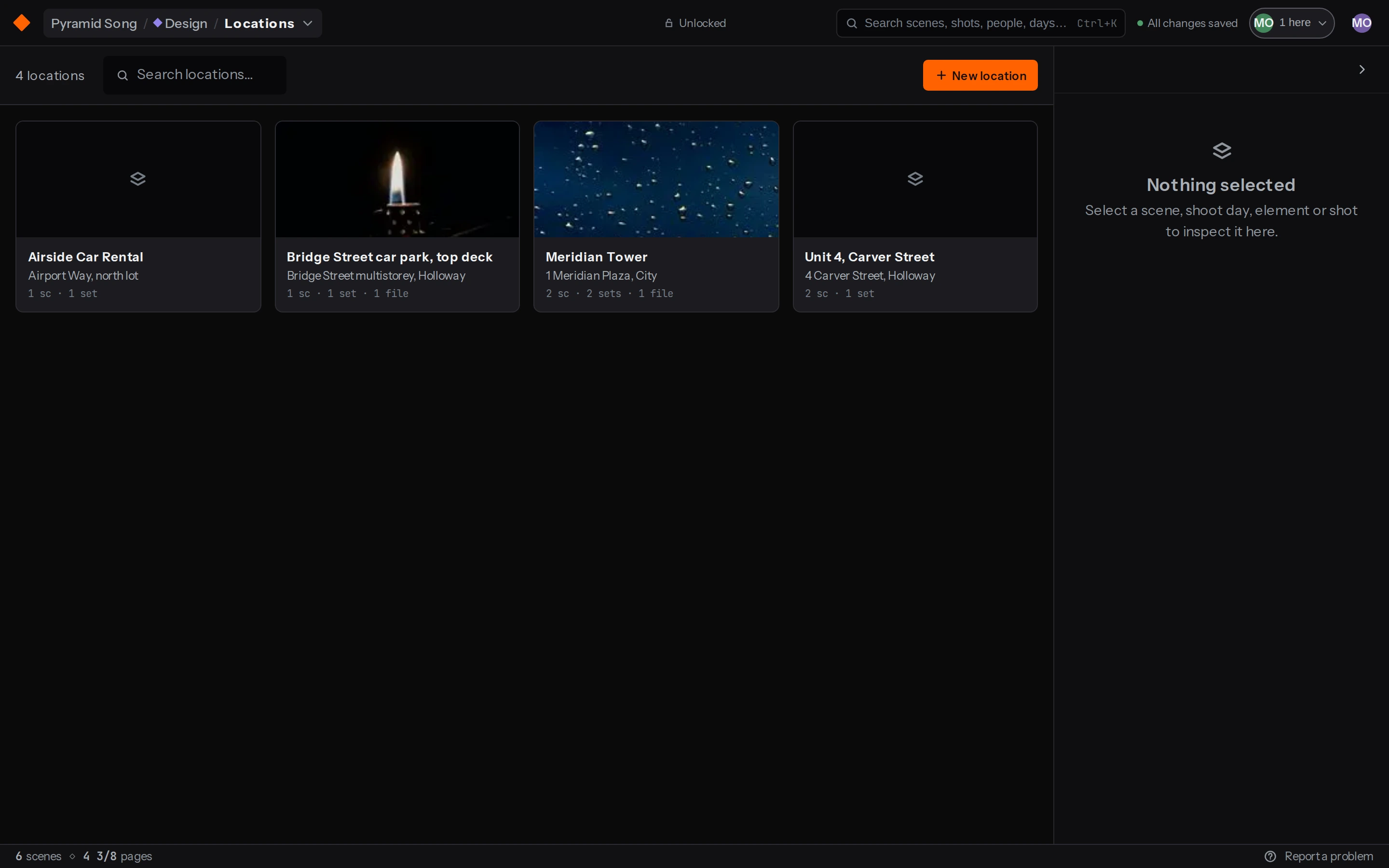
A slugline says INT. LOBBY - NIGHT. A location is the actual lobby, with an address, somewhere for the crew to park and a nearest hospital. You assign scenes to it one at a time and never by matching heading text, so renaming a slugline won’t cost you the work.
They’re cards with photographs on them, because that’s how you recognise a place. Drag your scouting photos straight onto one.
When the script has sluglines nothing covers yet, it’ll offer to match them in bulk, and TOWER - LOBBY and TOWER - FORTIETH FLOOR come back as one place with two sets. Nothing’s created until you say yes.
Each one holds an address, crew park, base camp, hospital, type, permit status and permit expiry.
It’ll warn you when a permit runs out before a day you’re shooting there, when it’s already expired, and when you’ve got night exteriors with nowhere recorded for the crew to park.
There’s a block called What a call sheet reads that shows you exactly what’ll print. Anything you haven’t filled in shows as a dash instead of a guess.
Connects to Scenes, the schedule’s by-location view, and the Locations and Safety blocks on a call sheet.
Mood
Reference boards for the look of the film.
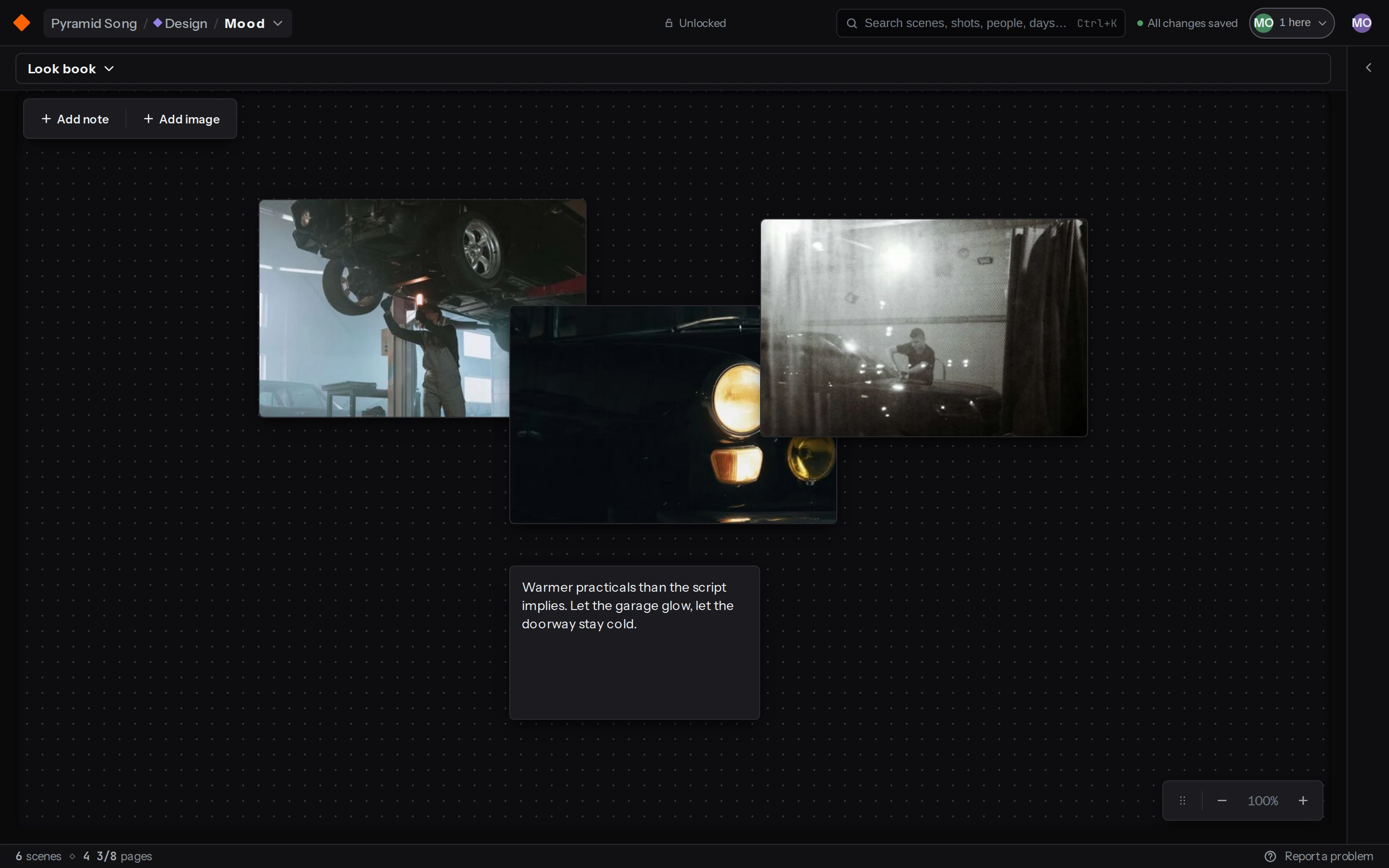
A canvas you pan around, with images and notes on it, and one board for each look you’re working out. Drag files on, paste from the clipboard, or add a batch at once.
Scroll or hold Space to pan around, pinch to zoom wherever the pointer is, and press . to fit the whole board on screen.
Drag items to move them and pull the corners to resize, and images keep their proportions. Arrow keys nudge by a pixel, and Shift with an arrow nudges by ten.
You’ll see other people’s cursors with their names on them. Cards move while they’re dragging them, and notes fill in as they type.
Deleting a board only moves it out of the way, and an admin can bring it back.
Connects to Assets, for the images. Boards belong to the production, and it’ll remember whichever one you were last on.
Assets
Every file, and the record it’s attached to.
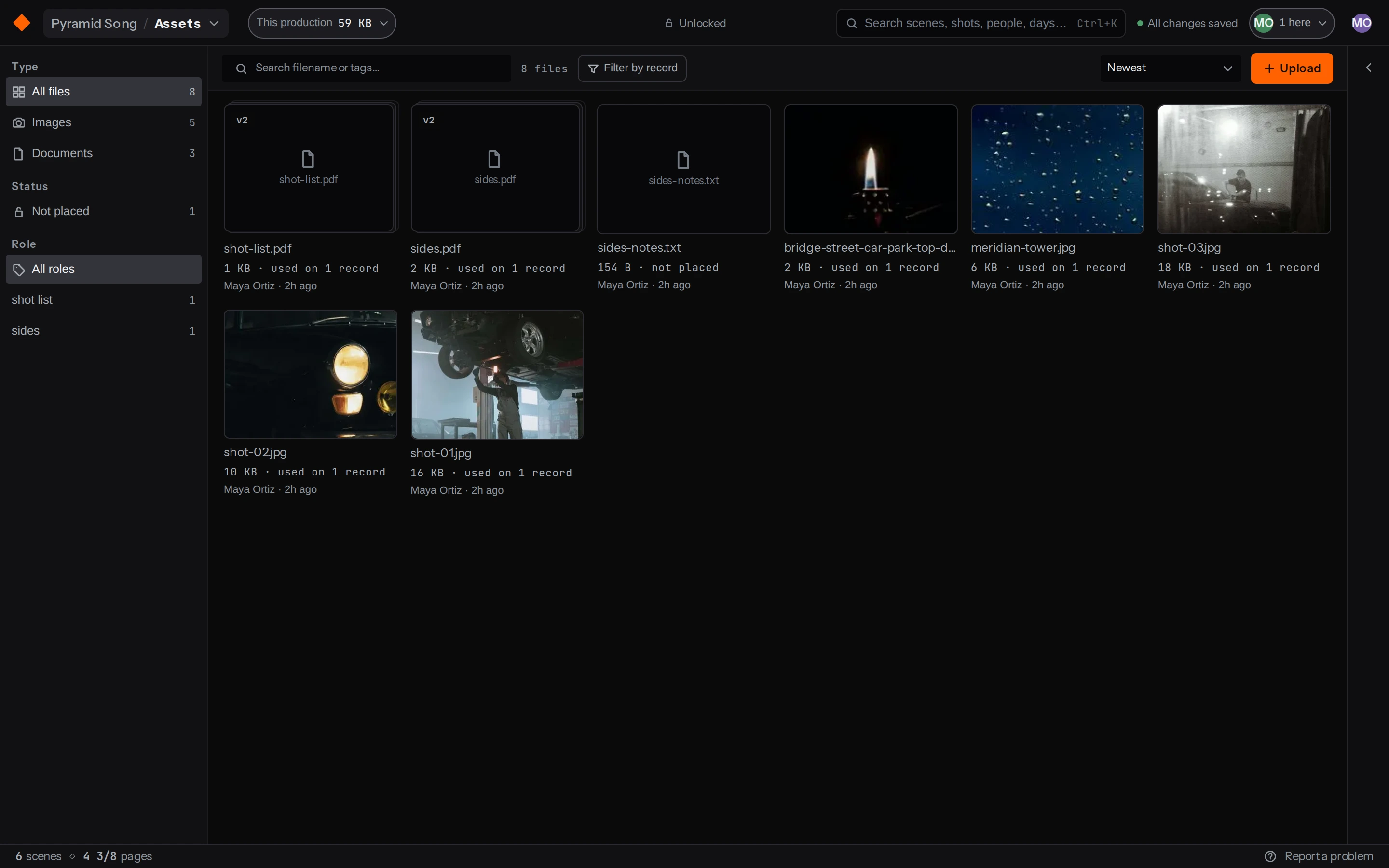
One place for everything you’ve uploaded, and a record of where each file is being used. Anything you upload from a record itself, like a reference on a shot or the scouting photos on a location, turns up here already attached.
Drag, paste or hit Upload. Uploads keep running while you move around the app, so you don’t have to sit and watch them.
It takes images, video, audio, PDFs, text, CSV and archives, each with its own size limit. Only images get a thumbnail.
You can attach a file to a scene, a shot, an element or a setup, give the link a role, and mark one placement as the primary one.
Filter by record and the relationships come with it, so picking a scene gets you its shots, and picking a shoot day gets you that day’s scenes and their shots.
Storage counts across the whole organisation against the owner’s plan, and there’s a breakdown by category, the biggest files, and old versions you can clear out in one go.
Connects to Scenes, shots, elements and setups. Shot references and scouting photos are all this, seen from the other end.
Plan
What it’s going to cost, and which day every scene lands on.
Schedule
Move a strip and the day recounts.
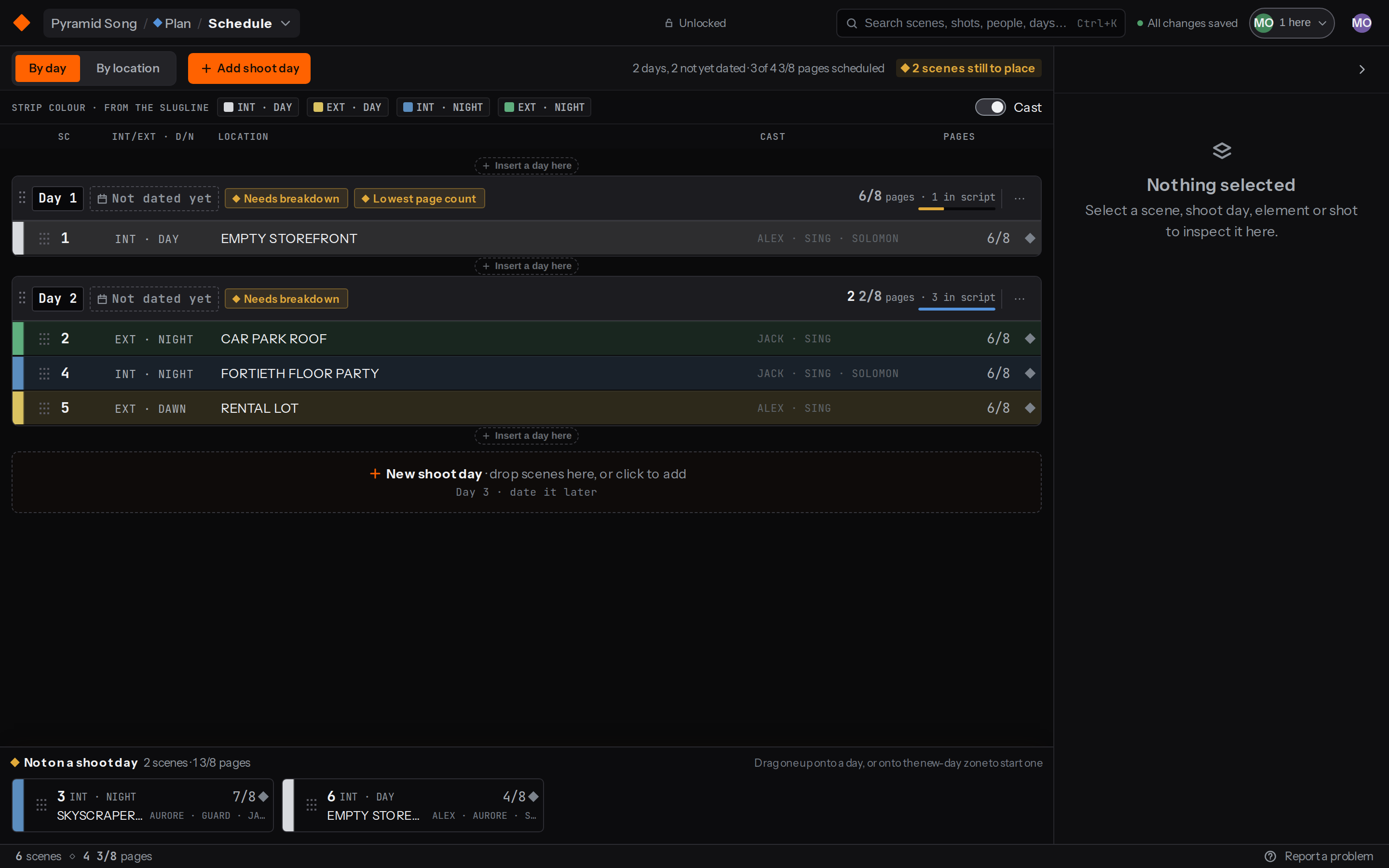
It’s a stripboard. Every scene is a strip, a shoot day is a stack of them, and anything you haven’t scheduled yet waits in the rack underneath.
Drag a strip onto a day, between days, back to the rack, or onto the new-day zone to start a day with it. Cmd-click or Shift-click when you want to move several at once.
The four colours are the industry key and they come off the slugline, so nobody sets them by hand. A heading with no time of day can’t be coloured, and your home page will tell you about it.
Page counts run in eighths down a column, so you can read the weight of a day at a glance. Scenes that have been cut don’t count toward the total.
Every day flags its own problems, including a scene with nothing tagged, a scene marked blocked, a cut scene still sitting on it, and which day is your lightest.
A second view stacks scenes by location instead of by day, which is the one to look at when you’re working out what’s still scattered.
Connects to Scenes and page counts from the script, locations, the day counts your budget uses, and the day a call sheet gets built from.
People
Cast comes out of the script. Crew you add by department.
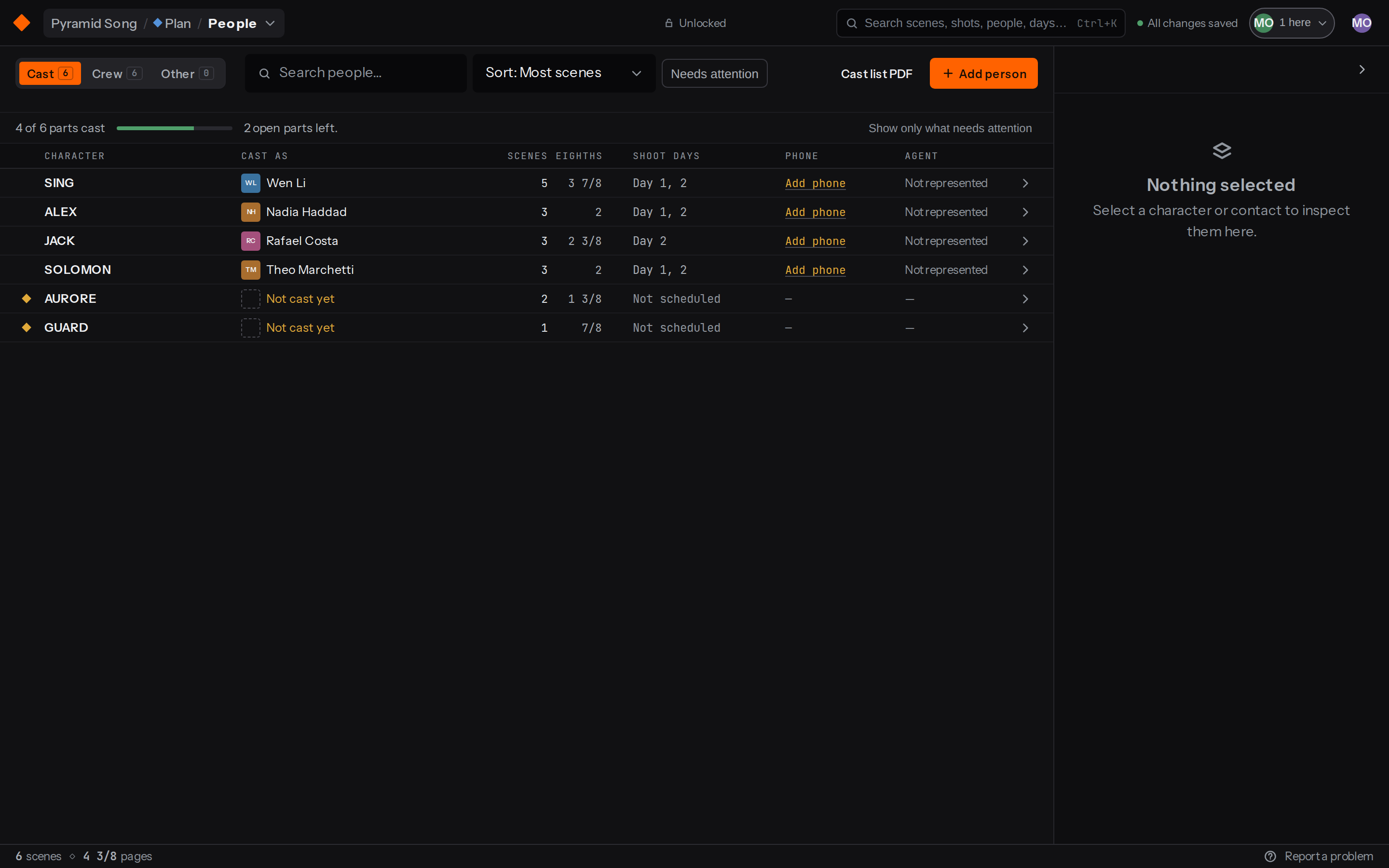
Cast, crew and everybody else over one list of contacts. You don’t type up a cast list, because every character with dialogue is already here with their scenes, their page count in eighths, and the days they’re called.
The work here is casting them. Until a part has a real person on it the row says Not cast yet and gets flagged, because an uncast role won’t get a call time or a delivery.
Crew are grouped by department, since that’s the unit a call sheet works in, and anyone without one won’t land on a sheet at all.
Vendors, clients and extras sit under Other so they don’t skew your department count or the daily total.
Contact details and rates are two separate permissions and neither one comes with the other. A field you can’t see isn’t rendered at all, so nobody can overwrite a number they’ve never read.
Connects to Characters from the script, day counts from the schedule, call times on the sheet, and crew day rates on budget lines.
Budget
It counts what it can count, and it won’t guess the rest.
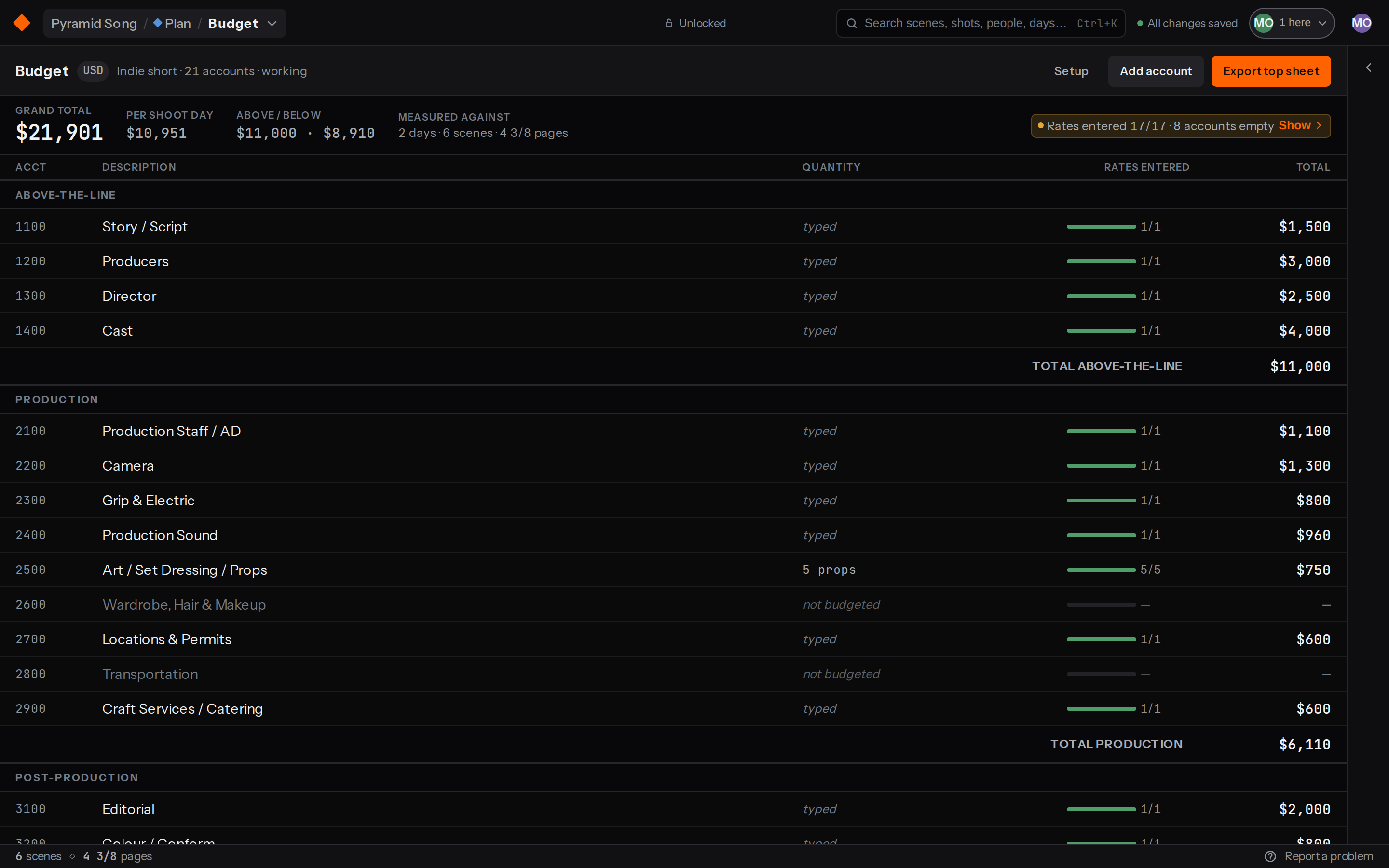
A chart of accounts with detail lines under it. The quantities come off the rest of the production, so your shoot days, crew days, location days and tagged props are already counted, and every rate is yours to put in. Start from an indie short, a full feature chart, or nothing at all.
The grid is built for typing, so Tab and Shift-Tab move you around, Return commits and adds a row, and esc reverts. The multiplier takes a number or a formula, and you go back into the formula itself whenever the number needs to change.
Tie a line to a crew member and it picks up their day rate from People, so you’re keeping one number instead of two. The day count comes off department bookings on the schedule, less anyone excused.
Move the schedule and any line it touched goes stale, then a review shows you what each one was, what it becomes, and the difference. The old number stands until you apply that, because it won’t show you a figure you haven’t seen yet.
An account with lines and no rates shows a dash rather than a zero. Fringes are percentages on a line or on a whole account, contingency is a percentage you set, and there’s a grand total per shoot day.
Pull a tagged category in from the breakdown and every line arrives at quantity 1 with no rate, since a keycard in five scenes is still one keycard. The scene list comes with it, so you can trace a line back to the page it came from.
Seeing the budget and seeing rates are two different permissions. Without the second you still get every quantity, every unit and every stale marker, with the word Restricted where a figure would be. The grand total goes too, or you could subtract your way to somebody’s fee.
Connects to Shoot days and department bookings from the schedule, day rates from People, tagged elements from the breakdown.
Shoot
The version of all of it you use standing up.
Call sheets
Half of it is already filled in. You write the rest.
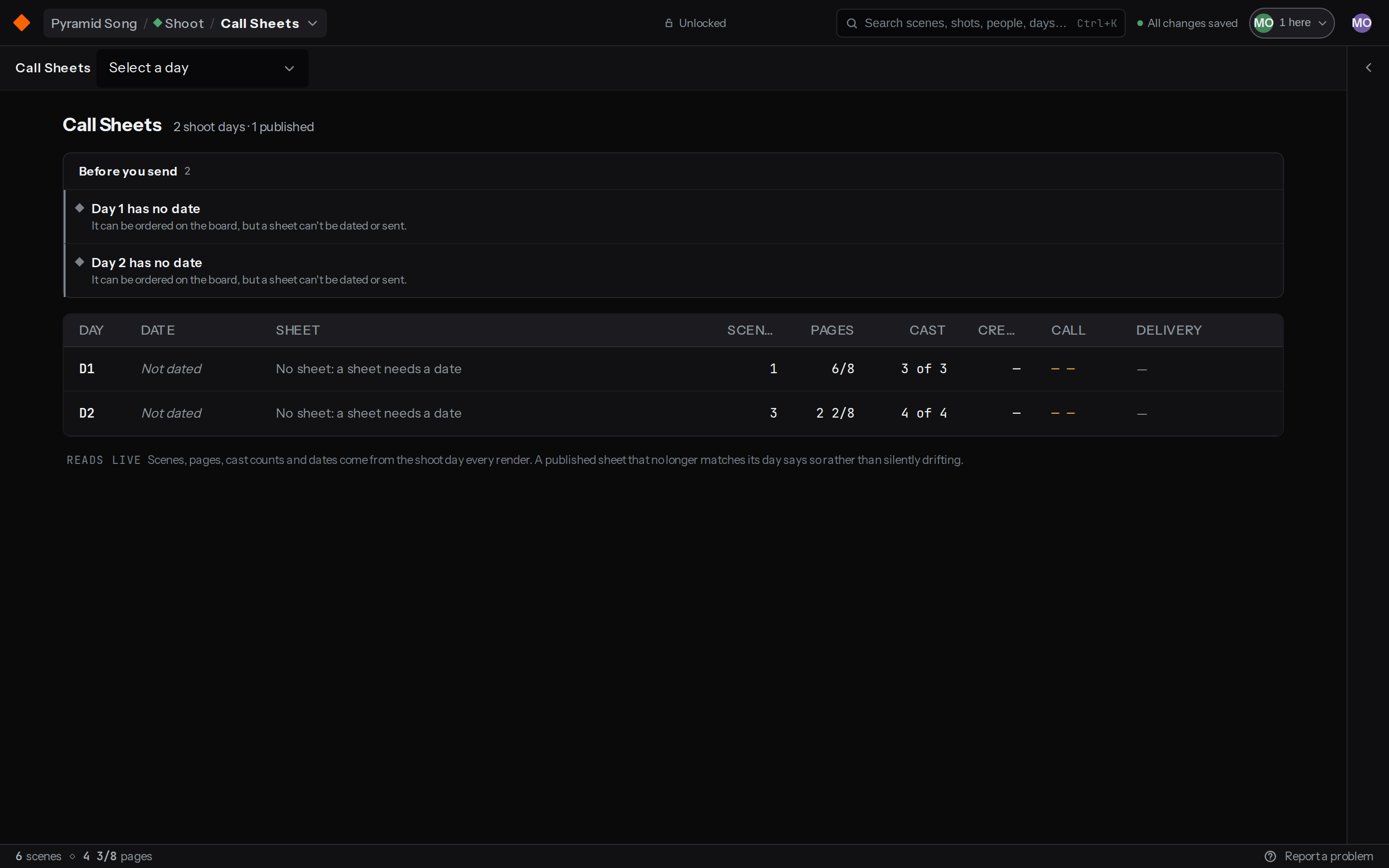
A call sheet belongs to a shoot day, so the scenes, pages, cast, sets and sunset are on it before you touch anything. What’s left is the part only you know, which is really what the sheet is for. Open a day and its sheet starts, and the page you’re editing is the page that prints.
Thirteen sections in the order they print, from the production header down to department notes. Anything you haven’t filled in shows as a dashed slot, and the three that’ll stop a send are marked harder: company call, cast on-set time, and the hospital or safety note.
Call times decide who’s on the day at all. Tick a department and its people come with it, a department default moves everyone who hasn’t got their own time, and an override says so on the row.
Preview as swaps the header for one person’s copy, so you can check the call time and the first location they’re going to see.
Publishing freezes a version and emails everyone a PDF and a link, with the sides and the shot list generated and attached for you. The link opens on a phone with no login, and it leads with their own call time and their first location.
Delivery tells you who was sent to, who opened it, who confirmed, and which roles you had nobody to call. Nudge chases only the people who haven’t done either.
Republishing goes back to the same list. Anyone whose times moved gets asked to confirm again and shown what changed, and everyone else stays confirmed.
Connects to The shoot day. Its scenes and pages, its cast and their times, its locations and addresses, and sunset for the date.
Shot lists
Plan the coverage, then tick it off standing up.
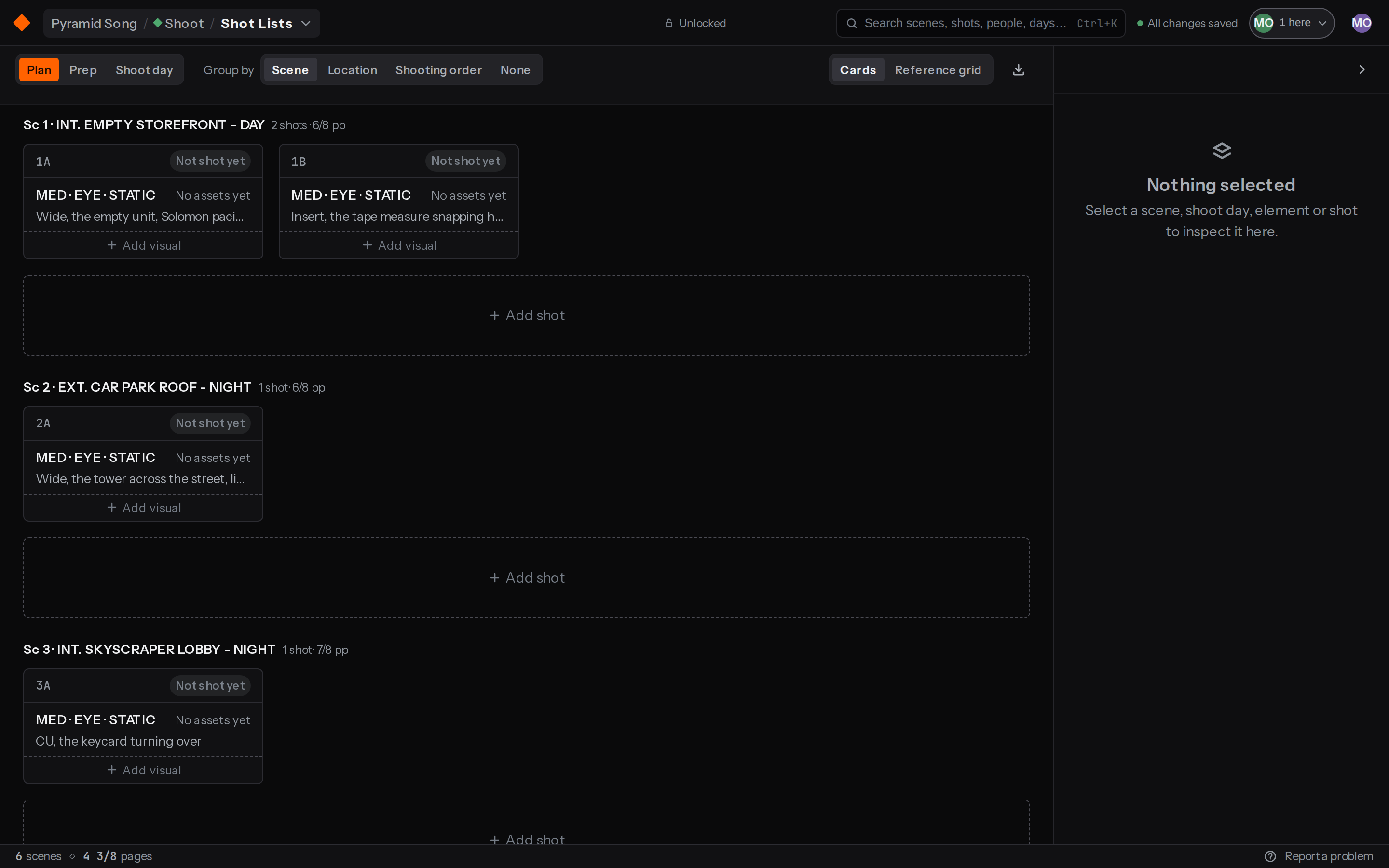
Three modes, one for each time you end up looking at a shot list. Plan is everything you’ve got, grouped however you think about it. Prep is a single day laid out as setups. Shoot day is the version you use on the floor.
Group by scene, location or shooting order, and switch between cards and a reference grid. A card with nothing on it offers Add visual, which uploads a file and pins it to that shot.
A setup is the camera position, meaning everything you get without moving it. Position, support and light belong to the setup, so every shot inside it shares them.
Prep is your night-before view. Which scene, what lenses, how many shots, what it covers, and how many you’ve got already.
The done tick is the one thing built for having no signal. It saves on the device and goes up when there’s a network, so it shows straight away, survives a reload, and a slow refresh can’t undo it.
Shots whose scene has left the script end up under Orphaned, so they don’t quietly disappear on you.
Connects to Scenes from the script, the shoot day from the schedule, reference images from assets, and the shot list PDF that goes out with a published call sheet.
Key is not a module
Key is the assistant, and it’s off until you turn it on. It reads the
production and comes back with a list, but it only ever proposes and it
never makes the change itself. Nothing happens until you press Apply,
and anything you do apply is one undo away. Key works as you do, so a
module your role can’t open isn’t in its vocabulary at all.
Not built yet
These aren’t in the product. We’d rather say that than call them coming
soon. Productions in our beta set the order we build these in.
ResearchReference and development notes, kept together.
Not built yet.
ReportsDay out of days, and cast day counts.
Not built yet.
DailiesThe footage, matched back to its setup.
Not built yet.
ReviewCuts, with notes on the frame.
Not built yet.
VFXFlagged shots, tracked out to a vendor.
Not built yet.
MarketingStills and cutdowns for the campaign.
Not built yet.
FestivalsSubmissions, and the deadlines they run to.
Not built yet.
DeliverablesThe distributor’s list, tracked through to done.
Not built yet.
And what it doesn’t do
A production tool that oversells itself ends up costing somebody a
shoot day, so here’s what’s worth knowing before you start.
There’s no PDF import. Scripts come in as Fountain, Final Draft or plain text.
There’s no cost report. The budget is there to plan your spend, and it won’t track actuals, purchase orders or invoices.
There’s no SMS. Phone numbers are on the call sheet, but nothing gets texted to them.
Offline covers the on-set done tick and nothing else. The rest of it needs a connection while you’re working.
There’s no Movie Magic budget export yet. You can get PDF and CSV.
Every plan includes every module. Free covers one production, and
$19 a month covers 3 people and
10 of them.
See pricing.
Bring your next film in early
We’re taking productions on in small batches while we’re in beta, so
we can answer you properly and know your film by the time you’re
shooting it.